
|

|
Entering Service Records
|
Overview
When one or more animals have been served by AI, it is best practice to enter this
information on the day of service. Keeping up-to-date with this record keeping will
enable the program to remind you of herd management tasks via the Your Herd Today
window; in this case, the program will be able to remind you when served animals are due
for PD. This tutorial will show you the easiest way to record a service.
Some drop-down boxes e.g. Group require setting up via the Setup program menu;
click the Setup menu item you require and then press F1 on the keyboard to get more help.
Follow the instructions in the order that they appear.
To enter one or more service records:
- Start the Herd Management program if it is not already running
- Move your mouse pointer to the left-hand side of the screen and single left-click on the
Data Entry Helper button. The main portion of the screen will change to show
a list of program tasks
- Click on the button for entering service information. You are now presented with
two further buttons
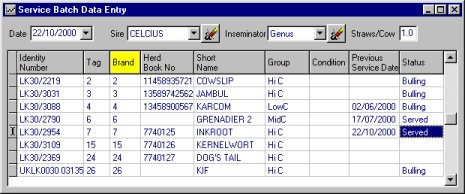
- Click on the button for entering service information in a batch. The Service
Batch Data Entry Window will now display (see below). You can also access this
window from the Data Entry | Cows | Service Batch menu item. This
Window will allow you to enter one or more animals with same service date.
- Select the service date by clicking the arrow on the the Date drop-down box
(Tip: you can move through the months using the scroll arrows at the top of the calendar).
- Select the sire from the Sire drop-down box (Note: You must have previously
entered the sires into the system via the Animal Details window)
- You can optionally select the inseminator's name from the Inseminator drop-down
box. If you have not set up a list of inseminators, you can leave this for now
- It is easier to find the required animals if they are sorted into ascending Brand number
order. To do this, click on the column heading Brand. Notice how the
heading changes colour to yellow when the data is sorted in ascending order
- Identify the row for each animal that you want to record a service for and double
left-click on its Brand number. Notice that the Service Date is amended and
the Status changes to "Served"
- Click the Apply Batch button
 on the Toolbar
- Close the Window. If any of your changes are not saved, the program will prompt
you to save them
 before closing the Window
Maiden Heifers
In order to record a services for maiden heifers, you first need to assign them a Brand
number. This is done through the Animal Details window. If the animal has not
yet been branded use the last 3 digits of the Identity Number. It is advisable to
assign brand numbers to heifers in the program before they are eligible for service.

