Registering a Birth with Holstein UK |
The process of calf pedigree registration and/or passport application is carried out using the Animal Registration Wizard. This has been designed to ensure that all the required information is correct before being submitted to Holstein UK. This tutorial forms a guide to the whole process from calving the cow through to submission to Holstein UK.
When you calve a cow using the Data Entry | Cows | Calving window and save the information, you will be required to select whether or not you wish to apply for a pedigree and/or a passport for the animal, as shown below:
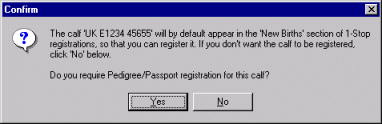
When you answer Yes, the calf is placed on the New Births screen, which is found on the Birth & Movement Registrations 1-Stop screen. When the answer is No, the calf will be excluded from the registration process, but will still be recorded in the database on your computer. You can configure the program to show the birth registration screen when the calving is complete. Do this by clicking on the 1-Stop Settings button on the Your Herd Today screen, then 1-Stop > General tabbed page and ticking the check box named "Show birth registration wizard after calving a cow".
You should check this screen regularly during the calving season, to make
sure the animals are appearing correctly. You should run the Animal Registration
wizard for each calf you intend to apply for. This will ensure all the required
information is entered correctly. Note: If for any reason you have to close
the wizard before all the steps are completed, the program will save all the information
ready for you to complete at a later time. When you click on an animal in the New
Births screen, the wizard will display:
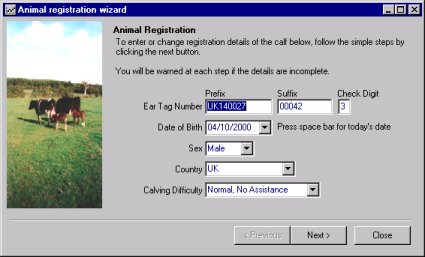
The number of steps that you need to complete will vary according to whether you are applying for a pedigree, a passport or both. When you have completed all the steps and reviewed the summary of information, click the Finish button. The following confirmation box will display:
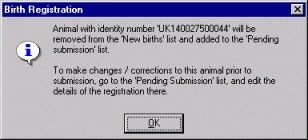
The calf is removed from the New Births screen and added to the Pending Birth Registrations screen.
You should review this screen several times a week. It contains
animals that have not yet been submitted and those that have not been accepted by Holstein
UK. Clicking on a list item will launch the Animal Registration Wizard.
Click on the Next button to see the Submission Results
for that animal. If the animal has not been accepted by Holstein UK, the submission
date and an error message is displayed. Use the wizard to make any necessary
amendments before submitting.
It is possible to remove or replace animals from both the New Births list and the Pending Births list. An animal can be removed from the Registration process in several ways:
When you Calve a cow, you have the option not to apply for Pedigree/Passport - selecting No here will prevent the calf entering the registration process
The second step of the Animal Registration Wizard allows to specify that the animal does NOT require a Passport or Pedigree. The Wizard can be accessed from the New Births screen and the Pending Biths screen. To remove an animal from either list, click on its list entry, and select the No passport/pedigree option. Now click the Next button and finally click Finish. The animal will be removed from the list
You can also remove an animal by right clicking its record in the Animal Details window, then left-clicking on the Passports & Premium Status item. In the window that displays, un-tick the box which says Register with Holstein UK.
Clicking on this button will initiate the dial-up process for the animal records to be sent to Holstein UK. Verify your Herd Prefix, enter your PIN number and click OK to dial the Holstein UK central computer.
You can view a list of previously submitted registrations by clicking to the Birth & Movement Registrations page on Your Herd Today and then selecting Submitted Registrations. A list of animal identities will display and will show additional columns for date submitted and HUK reference number. The latter number is returned by the HUK central system when the registration is submitted. By default this list only shows animals that have had a pedigree applied for. If you wish to see all animals (including passport applications only) go to the 1-Stop Settings button on the Your Herd Today screen, then 1-Stop > General tabbed page and ticking the check box named "Don't show animals with passports on the submitted animals list".
You need to record the date that the passports are received. This should be done because the program will not let you sell or move an animal that does not have a passport.. The program keeps track of the passports you applied for, and will present a screen with a list of these animals. By completing the passport received date, the program will store the details for later verification. Information about the passport application date and received date may be very useful if you have an inspection.
Proceed as follows:
Click the menu item Data Entry | Passports & Premiums | Passports but not received. The following window now displays containing the list of animals:
Click in the Date Received box and then click on the
downward-pointing arrow to select a date from the calender or type the date in the
"dd/mm/yyyy" format. This is a batch-processed screen, and none of the
changes will be committed until you click the Apply Batch button  on the toolbar.
When this has been done, the passport received date will be recorded in the Passport & CID Applications window (see below):
You can view the passport application status of an animal by bringing up
that animal's records in the Animal Details window and then selecting Passport
& Premiums Status from the Short-cut menu button  (you can also do this by right-mouse clicking on the Animal Details
window). The Passport & Premium Status window will show whether the
animal has had a passport applied for and the date of the application
(you can also do this by right-mouse clicking on the Animal Details
window). The Passport & Premium Status window will show whether the
animal has had a passport applied for and the date of the application
|
|