Pedigree Catalogue Export |
This program extracts all the pedigree catalogue data for a list of animals that you define via a filter. Once the information has been produced from the main 1-Stop database, it can be saved in a file; this will allow you to import the information into other programs for the purpose of formatting and presentation. For example, importing into a Word Processor or Desktop Publishing program will allow you to format the text (embolden, change font size and style, etc) and produce a suitable document layout.
.
Open the Pedigree Catalogue program via the Start > Programs > 1-Stop Herd Managment program group.
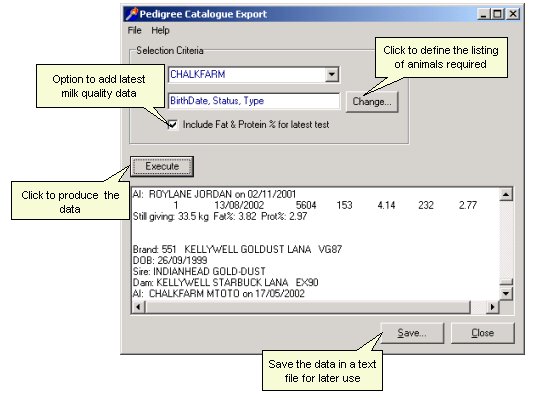
Check the Herd name is correct and then click the Change button to display the Animal Filter Values window. This is of the same type as in the Herd Management program; select the parameters to define the list of animals of interest. Once this is done, click OK.
If you wish to include the latest milk test quality data for each animal, tick the Include Fat and Protein.. check box.
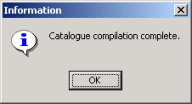
Click Execute. The information will be extracted from the database and will scroll past on the panel below. The program will report when the process is complete (shown below):
If you wish to save the information in a file, click the Save button to name and save the file. The file is saved as a tab separated text file type.
You can open the saved text file in any text processor like Wordpad that is included under the standard Windows Accessories. However, you may wish to improve the presentation of the information; for example by applying text formatting or improving the page layout.. This would require you to use a Word Processor or Desktop Publisher program. For example, to import the file into Microsoft Word, start a new Word document and then click on the Insert > File menu. In the following file dialog box, select All Files (*.*) as the Files of type and then browse the folder where you saved the text file. Select the file and click Insert to load the data.
|
|